How to edit a schedule as a team members
Last updated: July 3, 2025
By default, only administrators can edit schedules. However, there are two ways to grant schedule editing permissions to non-admin team members:
Option 1: Global Role-Based Permissions
To allow users to edit all schedules across the organization, this can be added to a role globally:
Navigate to Configuration → Roles & Permissions
Select On-Call from the top under Roles and Permissions
Enable Update under Schedule permissions, Create and Delete permissions can also be granted, additionally Create and Update permissions for Schedule Overrride Permissions can be enabled as well
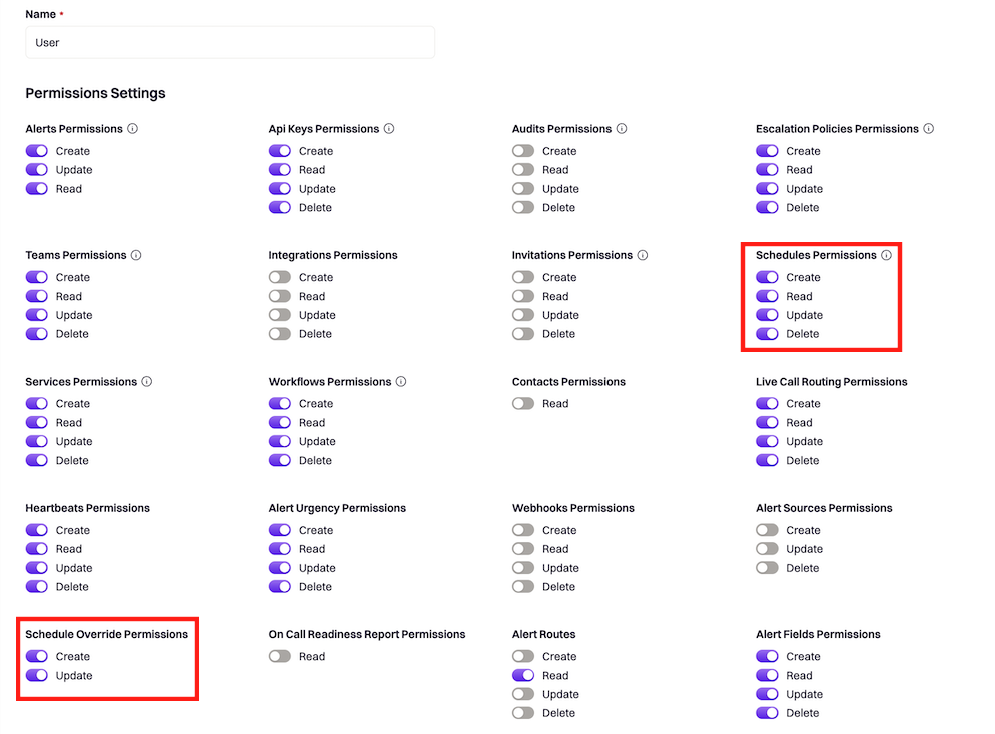
Note: Global based permissions can only be edited by an
adminorowner
Option 2: Team Admin permissions
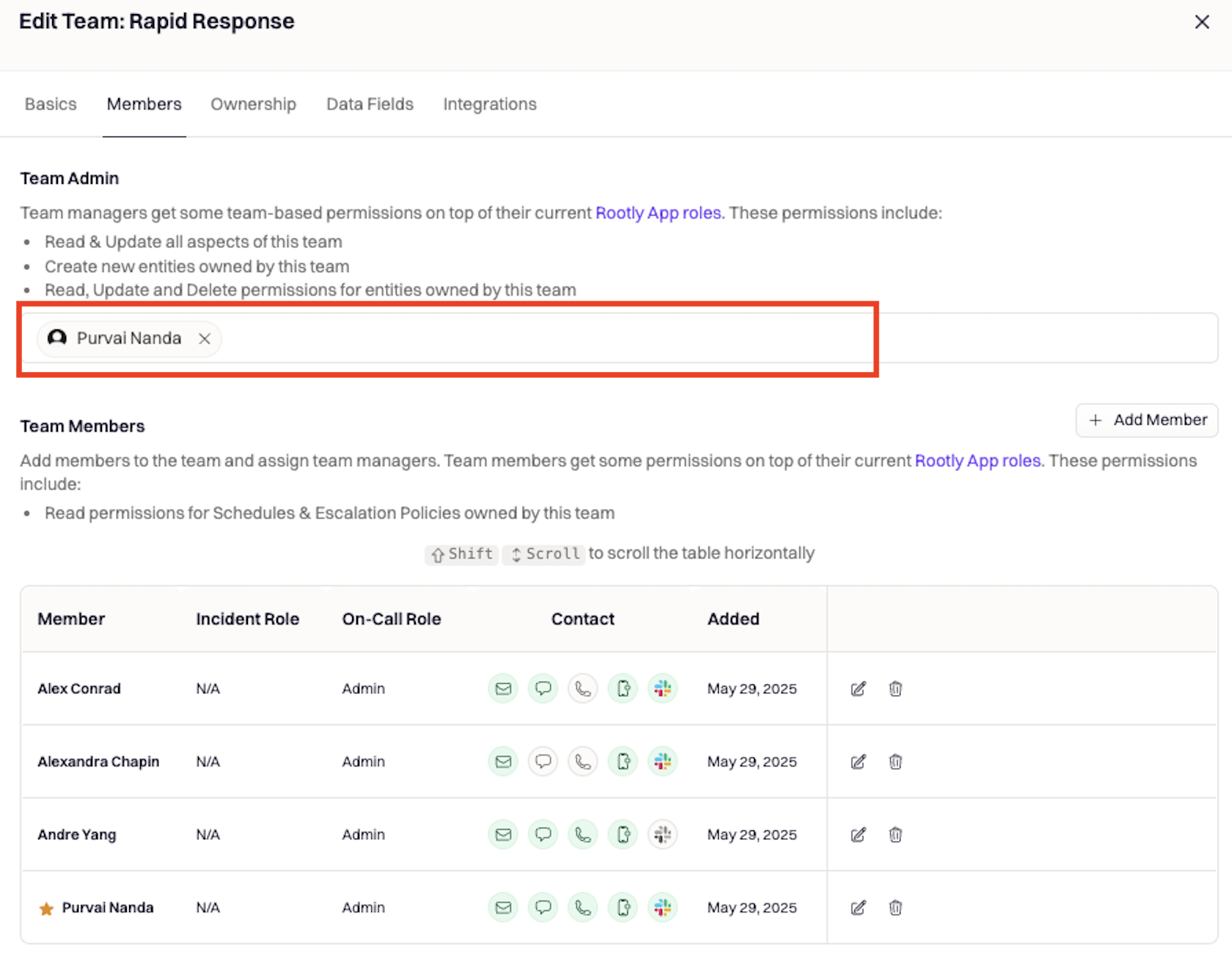
To allow users to edit only the schedules owned by their team, make them a team admin:
Navigate to Configuration → Teams → Select the applicable Team and select edit
Click to the Members tab
Add the applicable team member under the Team Admin section
Choose Option 1 (Roles-Based) if you want to grant organization-wide schedule editing permissions. Choose Option 2 (Team Admin) if you want to restrict users to only edit schedules for their specific team.